AI Image to Video: Turn Your AI Art into Moving Clips (2026)
October 23, 2026
🔞 18+ Only: This guide covers AI video generation for adult content. All examples describe fictional adult characters. You must be of legal adult age in your jurisdiction to use these tools.
You already have the perfect still: your AI-generated character, the lighting exactly right, the composition on point. Now imagine her hair moving, the camera drifting in, light shifting across the scene — without re-rolling the image and hoping the next one looks the same. That’s what AI image-to-video does: it takes your finished AI image as the starting frame and animates it into a short video clip, keeping the character and scene you already approved.
This guide covers what image-to-video actually does (and where it breaks), how to pick the right input image, how to write motion prompts that give you the movement you want, how to fix the morphing faces and warping backgrounds that plague bad renders, and the rules that keep the whole workflow honest.
Quick verdict: Image-to-video anchors everything to the still you already approved – the input image is 80% of the final quality. Describe small, specific motions with a tempo word, keep clips short, and when a render fails, cut the prompt back to a single motion. Restraint is what makes the result believable.
1. The Short Version
| Approach | What It Is | Best For |
|---|---|---|
| Motion-prompted I2V | Your image + a text description of the motion → short animated clip | The standard workflow; most tools work this way |
| Start–end frame I2V | Two images (first and last frame); the model interpolates between them | Controlled transitions: pose A to pose B, day to night |
| Camera-path animation | Motion prompt describes only camera moves (push in, pan, orbit) | Cinematic feel on a static character; the most reliable motion type |
| Loop/ambient animation | Subtle cyclical motion: breathing, hair sway, blinking | Living portraits and profile avatars; hides model weaknesses |
The rule of thumb: start with a great still image (our restoration guide covers getting there), describe small, specific motions, and keep clips short. Image-to-video rewards restraint — the subtler the motion, the more believable the result.
2. What “Image-to-Video” Actually Does
An image-to-video model takes your picture as frame one and hallucinates frames two through N. It doesn’t understand physics or anatomy the way you do — it predicts what the next frame should look like based on patterns from training video. The motion prompt tells it what kind of motion to predict: a camera push-in, a head turn, hair moving in wind.
Why this matters for AI art specifically: text-to-video has to invent both the character AND the motion, so characters drift between generations. Image-to-video anchors everything to your approved still. The first frame is fixed — the model can only deviate from there, which is why the input image is 80% of the final quality.
- What it does well: camera moves (slow push-ins, pans, gentle orbits), subtle ambient motion (breathing, blinking, hair sway), simple head turns and expression shifts.
- What it struggles with: complex body motion (dancing, walking), hands doing things, anything the model has to invent beyond the frame edge, fast action.
- The golden constraint: the model can’t show what isn’t implied by the first frame. A portrait can’t suddenly reveal a full body that was never drawn — it will invent one, badly.
3. Picking the Right Input Image
Not every great still makes a great video source. Before you hit generate, check the image against this list:
- Clean, finished quality. Fix artifacts before animating — the motion pass will amplify every flaw. Upscale and restore the still first (see our restoration guide), then animate the final version.
- Simple, readable composition. One subject, uncluttered background. Busy scenes give the model more pixels to warp — every extra element is another failure surface.
- Face large enough to survive. Faces are where image-to-video fails most visibly. If the face is a small smudge in a wide shot, the model will invent a new face every few frames and they’ll all differ.
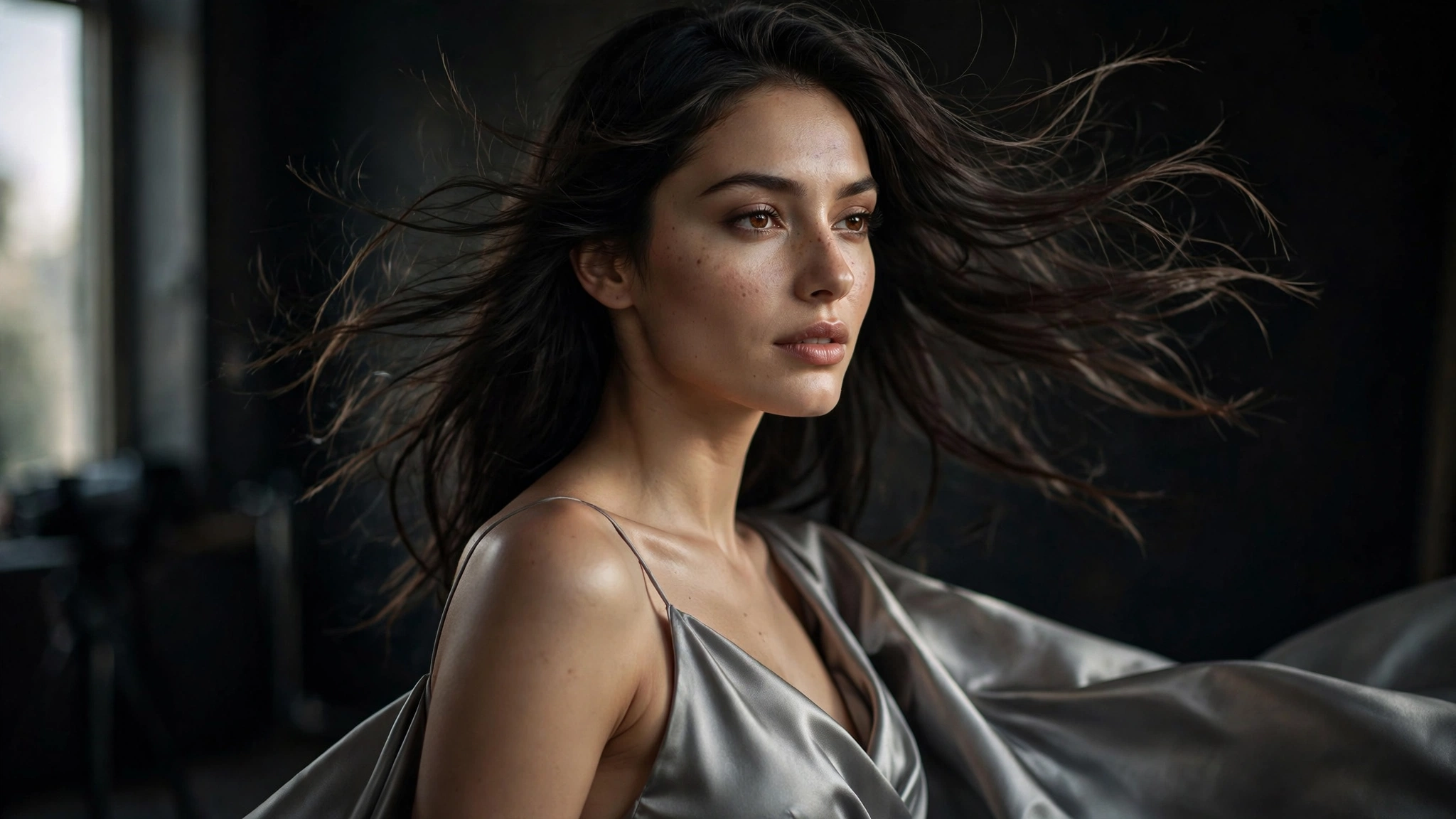
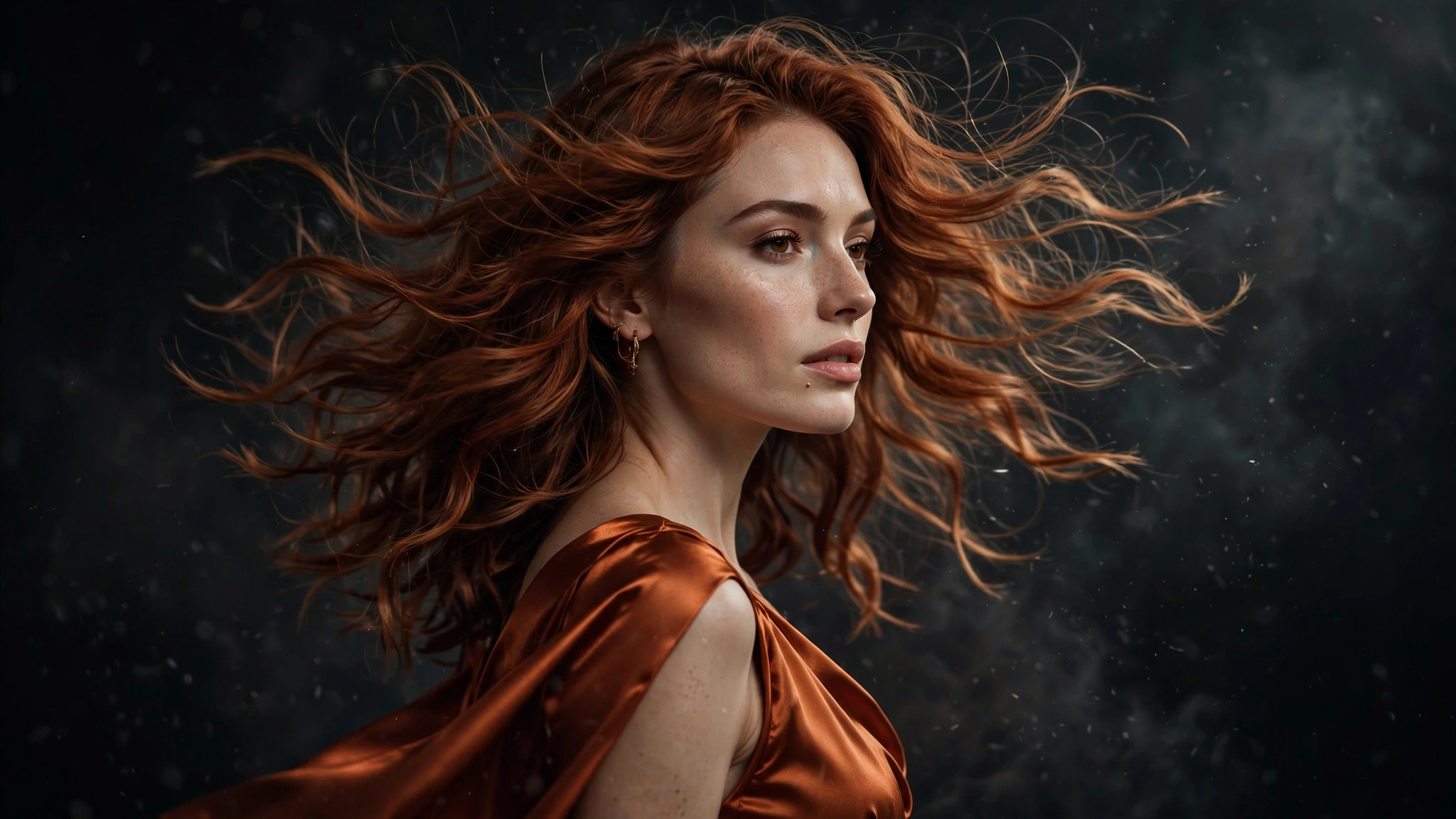
- Neutral or implied-motion pose. Images that already suggest movement — hair mid-sway, fabric caught by wind — animate more convincingly than rigid poses, because the model has directional cues to follow.
- Match the output ratio. Generate or crop your still to the video’s aspect ratio first. Forcing a square image into a 16:9 video means the model invents the sides — badly.
The faces rule, again: if the face matters, make it prominent in the frame. A close-up or medium shot of your character animates ten times better than a distant full body. This is the same lesson from our influencer guide — consistency starts with the face.
4. Writing Motion Prompts That Work
The motion prompt is a different skill from image prompting. You’re not describing a scene — the scene already exists. You’re describing change: what moves, how, and how fast. The formula that works:
Subject + motion verb + direction + speed + camera (optional).
- Good: “woman slowly turns her head toward camera, hair swaying gently, subtle smile forming, slow push-in”
- Bad: “she dances beautifully in a gorgeous scene with amazing cinematic motion”
The difference: the good prompt names one or two motions with clear direction and speed. The bad prompt is vibes — and vibes get you a warping mess, because the model has to guess what “beautiful dancing” means frame by frame.
Copy-ready motion recipes:
- Living portrait: “subtle breathing motion, slow blink, hair swaying softly in a gentle breeze, static camera” — the safest motion there is; nearly impossible to break.
- Camera push-in: “slow dolly push-in toward the subject, subject still, background gently blurring” — puts all the motion on the camera, which models handle beautifully.
- Head turn: “woman slowly turns her head from profile to three-quarter view toward camera, natural motion, hair following the turn” — keep it slow; fast turns warp faces.
- Ambient scene: “curtains billowing softly, dust motes drifting in the light, subject breathing subtly” — motion everywhere except the face; the safest way to add life.
Speed words matter. Always include a tempo: “slowly,” “gently,” “gradually.” Fast motion is where temporal models fail — slow motion is where they shine. If the tool offers a motion-strength slider, start low and increase only if the clip feels dead.
5. Common Failures and How to Fix Them
| Failure | Cause | Fix |
|---|---|---|
| Face morphing | Model re-inventing the face every frame instead of tracking it | Slower motion prompt; larger face in the input image; shorter clip |
| Melting hands | Hands move and the model can’t track the geometry | Keep hands still or out of frame; describe only upper-body motion |
| Background warping | Camera move dragging the background inconsistently | Simplify: static camera with subject motion, or pure camera move on a still subject — not both |
| Flicker / shimmer | Detail changing randomly between generated frames | Lower motion strength; add “smooth, consistent motion” to the prompt; keep the clip short |
| Object appearing/vanishing | Model hallucinating new elements mid-clip | Tighten the prompt to named motions only; avoid adjectives like “beautiful” that invite invention |
| Clip feels dead | Motion strength too low or motion too subtle to notice | Raise motion strength one notch; add one secondary motion (hair + breathing, not just breathing) |
The one-motion rule: if a clip is failing, cut the prompt down to a single motion and re-render. Nine times out of ten, the fix is less motion, not more. Stack a second motion only after the first one renders clean.
6. The Workflow: Still → Motion → Polish
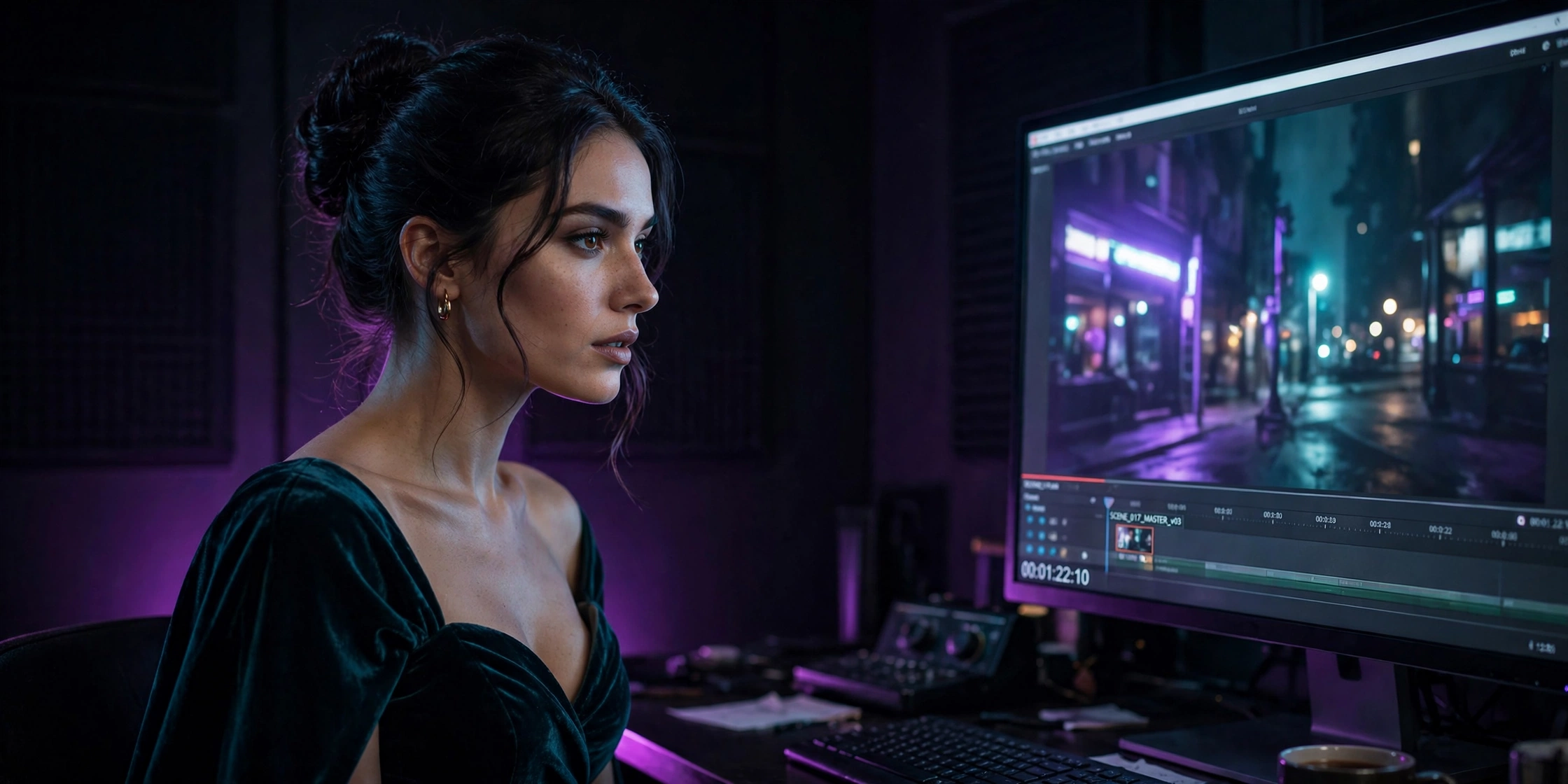
The full pipeline, in order:
- Generate and finish the still. This is your frame one — prompt it, restore it, upscale it. Every shortcut here shows up in motion.
- Write one clear motion prompt. Subject + verb + direction + speed. One or two motions max.
- Render short first. Generate the shortest clip the tool allows as a test. Judge the motion before committing to a longer render.
- Iterate on motion, not the image. If the clip fails, change the motion prompt — don’t regenerate the still. The still is approved; the motion is the variable.
- Upscale the finished clip. Only upscale keepers, once, at the end (our video upscaler guide covers this). Upscaling amplifies motion flaws too, so finish the motion first.
The cost instinct: video renders cost more compute than stills — that’s just physics, more frames means more work. The expensive mistake is re-rendering the same bad motion five times. Test short, diagnose with the table above, and spend your renders on motion prompts you’ve already proven.
7. The Honesty Rules
Image-to-video inherits every rule of image generation, plus one of its own:
- Fictional characters only. Animate AI-generated fictional adult characters. Never animate a real person’s photo into explicit or misleading content — motion doesn’t change the consent equation, it amplifies it. A non-consensual deepfake video is worse than a non-consensual deepfake image.
- Label AI video as AI. An animated AI clip is still an AI clip. Platform disclosure rules (see our influencer guide) apply to the finished video, not just the still.
- Don’t fake provenance. “AI-animated from an AI still” is honest. Presenting it as camera footage is a lie, and a detectable one.
- Keep the source still. Save the input image. If a platform questions the clip or you need a different motion, the original still is the asset — re-animating an animation degrades fast.
None of this limits the creative upside. A still you love, brought to life with a slow push-in and drifting hair, is one of the most satisfying moments in this whole workflow — just keep the pipeline honest and the characters fictional.
8. FAQ
What is AI image-to-video?
A tool that takes a still image as its first frame and generates the following frames from a motion prompt, turning your approved AI art into a short animated clip. The character and scene stay anchored to your input image; only the described motion is invented.
What makes a good input image for image-to-video?
A clean, finished, high-resolution still with a simple composition, a face large enough to track, and an aspect ratio matching the output video. Fix artifacts and upscale before animating — motion amplifies every flaw.
How long can image-to-video clips be?
Most tools generate a few seconds per render — typically 2 to 10 seconds depending on the platform. Longer clips compound every failure mode (face morphing, warping), so test short and keep final clips tight.
Why does my character’s face change during the clip?
The model is re-inventing the face each frame instead of tracking it — usually because the face is too small in the input image or the motion is too fast. Use a larger face, a slower motion prompt, and a shorter clip.
Can I control the camera movement in image-to-video?
Yes — camera moves are the most reliable motion type. Describe them explicitly: “slow dolly push-in,” “gentle pan left,” “subtle orbit.” Pure camera motion on a still subject rarely breaks.
Is it okay to animate a real person’s photo?
Animating real people’s photos into explicit or misleading content without their consent is non-consensual intimate imagery — motion makes it worse, not better. Keep this workflow to fictional adult characters.
{“@context”: “https://schema.org”, “@type”: “FAQPage”, “mainEntity”: [ {“@type”: “Question”, “name”: “What is AI image-to-video?”, “acceptedAnswer”: {“@type”: “Answer”, “text”: “A tool that takes a still image as its first frame and generates the following frames from a motion prompt, turning your approved AI art into a short animated clip. The character and scene stay anchored to your input image; only the described motion is invented.”}}, {“@type”: “Question”, “name”: “What makes a good input image for image-to-video?”, “acceptedAnswer”: {“@type”: “Answer”, “text”: “A clean, finished, high-resolution still with a simple composition, a face large enough to track, and an aspect ratio matching the output video. Fix artifacts and upscale before animating — motion amplifies every flaw.”}}, {“@type”: “Question”, “name”: “How long can image-to-video clips be?”, “acceptedAnswer”: {“@type”: “Answer”, “text”: “Most tools generate a few seconds per render — typically 2 to 10 seconds depending on the platform. Longer clips compound every failure mode (face morphing, warping), so test short and keep final clips tight.”}}, {“@type”: “Question”, “name”: “Why does my character’s face change during the clip?”, “acceptedAnswer”: {“@type”: “Answer”, “text”: “The model is re-inventing the face each frame instead of tracking it — usually because the face is too small in the input image or the motion is too fast. Use a larger face, a slower motion prompt, and a shorter clip.”}}, {“@type”: “Question”, “name”: “Can I control the camera movement in image-to-video?”, “acceptedAnswer”: {“@type”: “Answer”, “text”: “Yes — camera moves are the most reliable motion type. Describe them explicitly: slow dolly push-in, gentle pan left, subtle orbit. Pure camera motion on a still subject rarely breaks.”}}, {“@type”: “Question”, “name”: “Is it okay to animate a real person’s photo?”, “acceptedAnswer”: {“@type”: “Answer”, “text”: “Animating real people’s photos into explicit or misleading content without consent is non-consensual intimate imagery — motion makes it worse, not better. Keep this workflow to fictional adult characters.”}} ]}